Select Apply for a card on this site, then enter your name, email and a contact channel.
Read the terms and privacy notice, confirm your consent and select Submit application. No payment is collected.
Once Application received appears, save the reference and wait for your setup notification. Contact MEHUH with the reference if you would like faster assistance.
Instruction illustration · Fictional data, not an account screenshot
Apply
Submit your details
NameExample customer
Emailcustomer@example.test
ContactExample WeChat / QQ
Submit application
Received · MH-EXAMPLE-001
02
Complete your Ramp invitation
After receiving your MEHUH Ramp invitation, follow these seven steps. Ramp is the card and financial management platform. Contact MEHUH for card, funding and usage questions. Follow the requirements on the actual official page.
01
Find your invitation
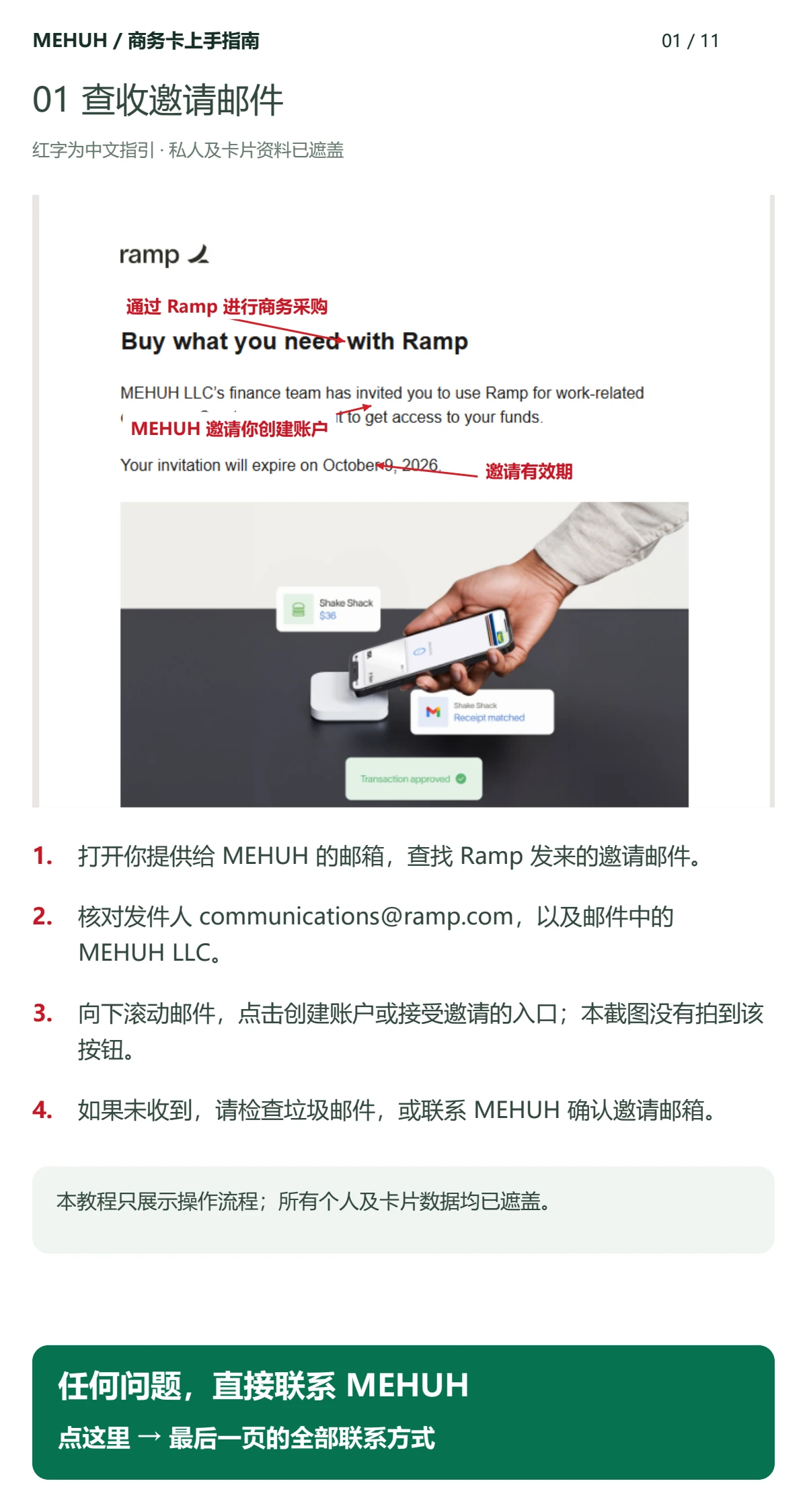
Check the email address you supplied to MEHUH for your Ramp invitation, including the spam folder.
Check MEHUH LLC and the sender, then scroll down to the account creation or invitation button. Use the expiry shown in your own email.
View this step’s illustrated instructions
Original illustrated guide / 01Scroll vertically and horizontally
Details are masked. Follow the actual controls and dates.
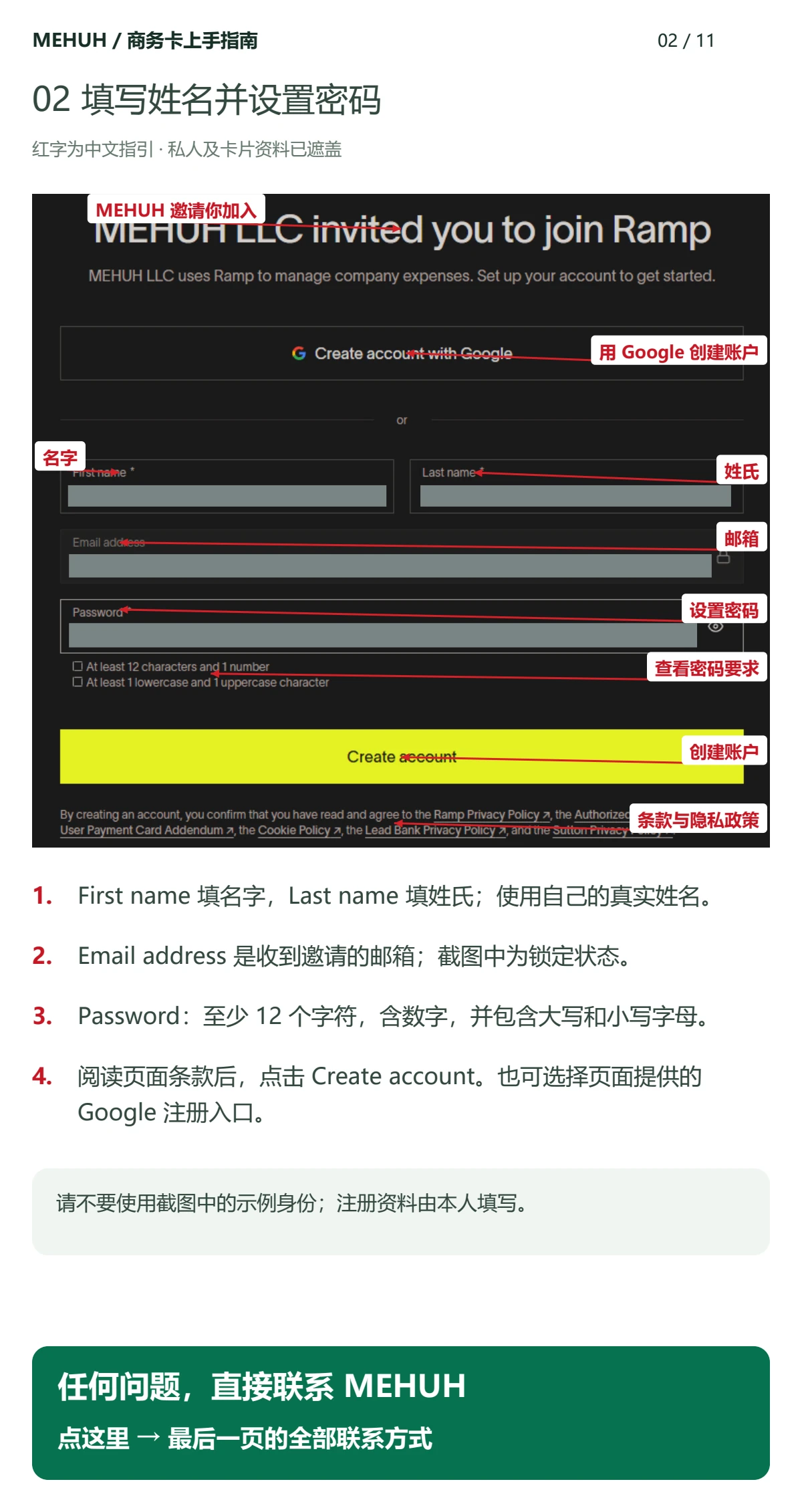
Enter your given name under First name and surname under Last name. Check the email already linked to the invitation.
Set a Ramp password using the current requirements, then select Create account. The example requires at least 12 characters with uppercase, lowercase and numbers; follow the actual page.
This is your Ramp account password. The six-digit MEHUH login password you set later is separate.
View this step’s illustrated instructions
Original illustrated guide / 02Scroll vertically and horizontally
Details are masked. Follow the actual controls and dates.
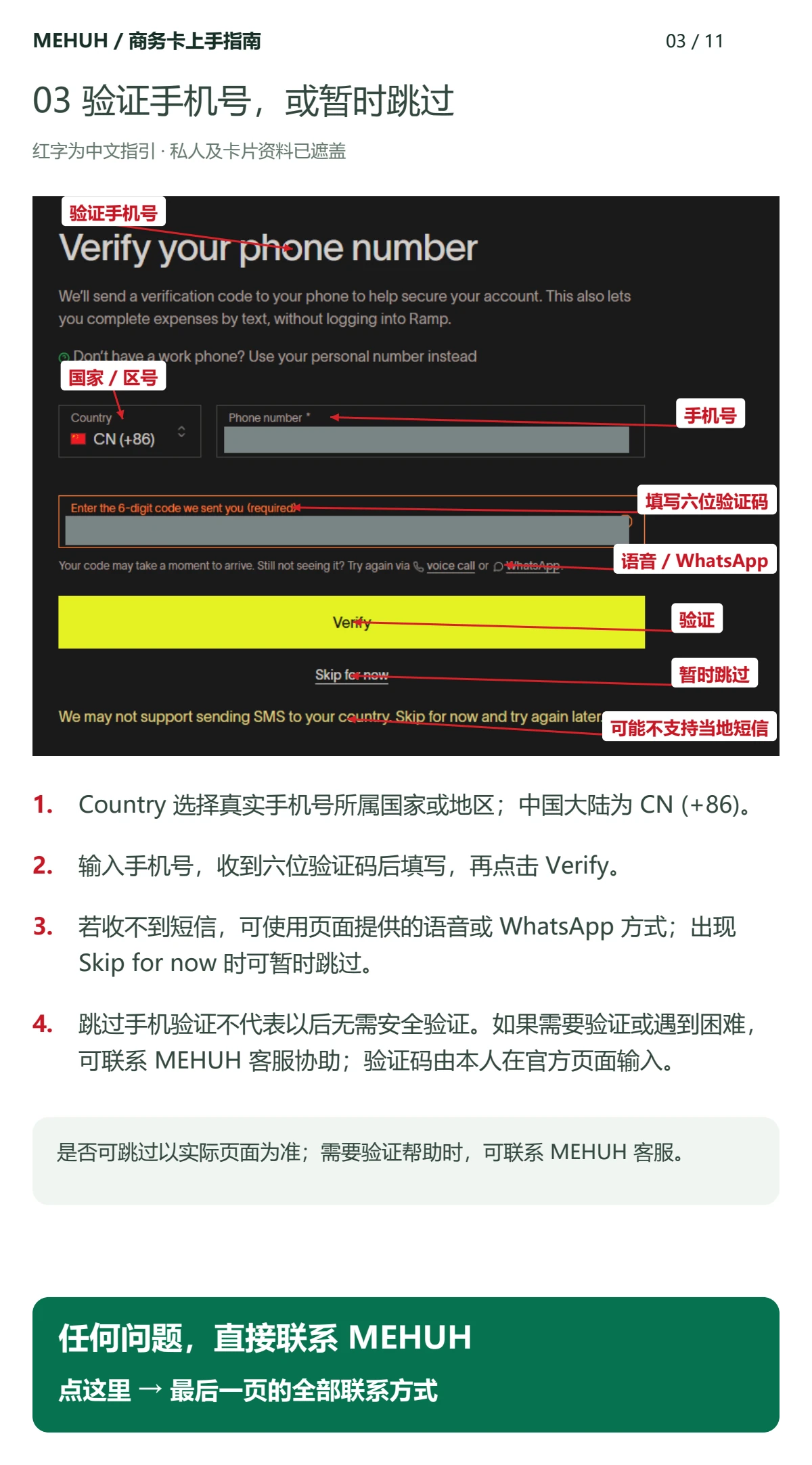
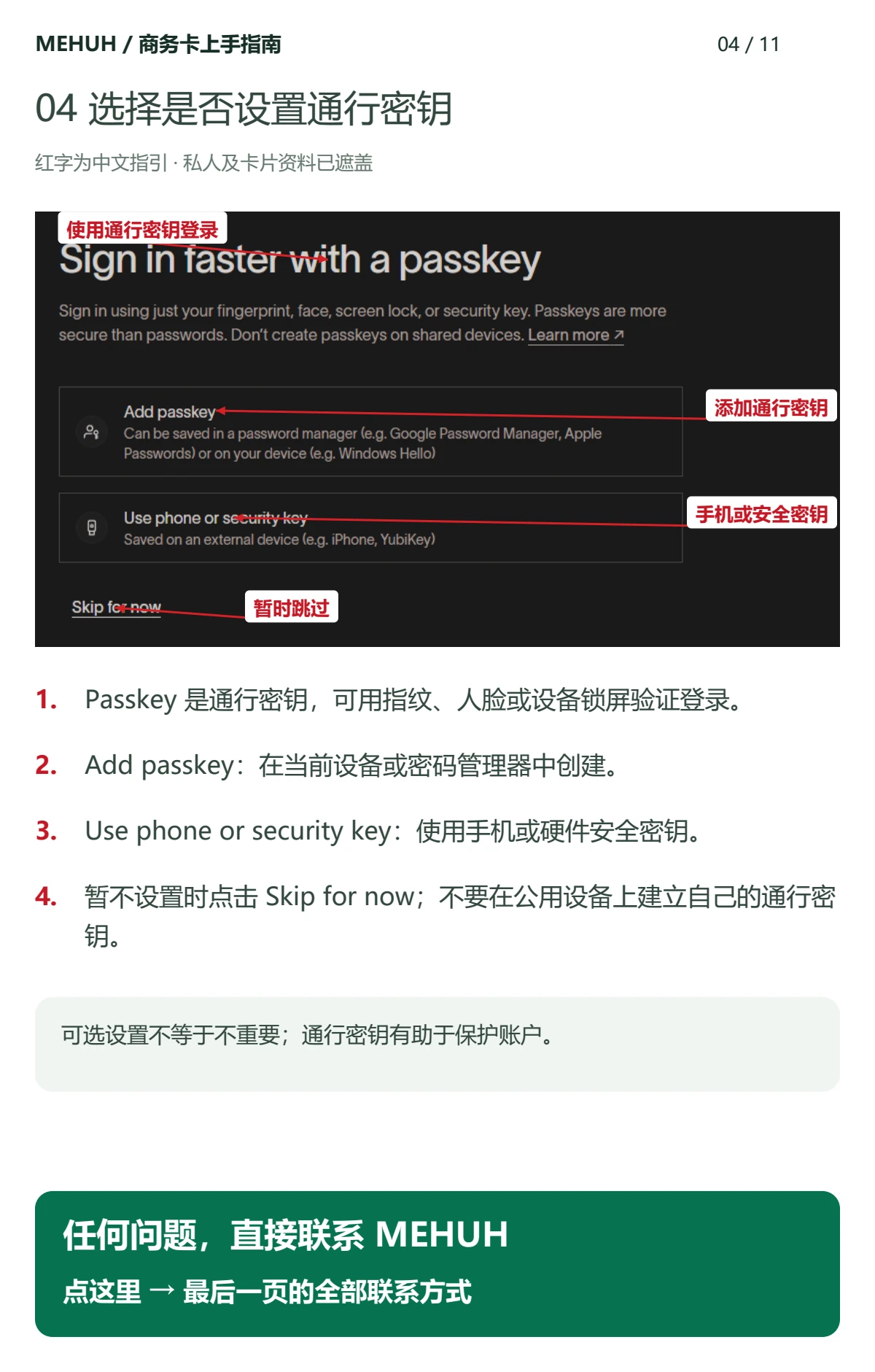
Open app.mehuh.com. Choose First time, enter the email matching your Ramp cardholder record and request a verification code.
Check your inbox and spam folder, enter the code and select Verify email. Set and confirm a six-digit login password, then continue to your wallet.
For later visits, enter your email and the same six-digit password. Use Forgot password to verify email and reset it. The wallet syncs associated cards; contact support if none appear.
Instruction illustration · Fictional data, not an account screenshot
Secure sign-in
Sign in to my wallet
Emailcustomer@example.test
6-digit login password• • • • • •
Sign in
First time: verify email and set a six-digit password. Use it for later sign-ins.
04
View card details securely
Select your own card in My wallet, then choose View card details.
Use the same six-digit password you use to sign in. There is no separate card-viewing password.
After confirming your login password, the secure component shows the card number, expiry and security code. Use its copy controls. Never forward these details to support.
When a merchant asks for CVV or Security code, use the code displayed in your card details, not your six-digit MEHUH login password.
Instruction illustration · Fictional data, not an account screenshot
My wallet
Example work card•••• •••• •••• 0042
6-digit login password• • • • • •
Confirm and view details
Card number
•••• 0042
Expiry / security code
•• / •• •••
Full details appear only in the secure component.
05
Use full billing details
Find Name on card and Billing address in the card details panel.
Use your card’s actual street, additional address line, city, state, postal code and country in the merchant fields. Billing details differ from residential or shipping details.
If the complete address is unavailable, contact MEHUH rather than inventing it. Merchant taxes follow actual checkout.
Instruction illustration · Fictional data, not an account screenshot
My wallet
Cardholder and full billing address
Name on card
EXAMPLE CUSTOMER
Address line 1
42 Example Street
Address line 2
Suite 2
City
Example City
State
CA
Postal code
00000
Country
US
All details above are fictional. Use your own card’s actual billing details.
06
Select and fund a card
Sign in and view your own cards. Select Fund card and check the selected name and last four digits. Choose the target first if you have several cards.
Enter the USD credit you want ($1–$10,000, up to two decimal places). Review payable CNY, the rate date and fee explanation, then create the order.
Pay through the wallet order’s WeChat, Alipay or Taobao instructions and submit the transaction reference. Reporting payment only starts review. Completion appears after receipt verification and successful crediting.
Instruction illustration · Fictional data, not an account screenshot
My wallet
Fund the selected card
Example work card•••• 0042
Card credit · USD$35.00
Reference CNY total¥256.68
Create funding order
Payment notice → receipt review → crediting
Illustrative rate 7.12. Use the actual wallet order.
07
Freeze and unfreeze
Select the card, choose Freeze card, check the target and confirm. Use the resulting card status as confirmation.
Select Unfreeze to resume, and wait for success before paying. Refresh the status and contact support if processing fails.
Freezing does not cancel subscriptions or reverse authorized transactions. Cancel subscriptions separately in the merchant account.
Instruction illustration · Fictional data, not an account screenshot
My wallet
Example work card•••• •••• •••• 0042
Freeze card
New card transactions pause after confirmation.
Confirm freeze
Frozen · select Unfreeze to resume
Freezing does not cancel merchant subscriptions.
08
Failures, refunds and support
For failures, check the message, limit, card status and full billing details before retrying repeatedly. A merchant or region may not support the card.
Request a refund from the merchant, retain its confirmation and transaction records, then review actual wallet status. MEHUH charges $0 for normal merchant refunds; third-party charges or exchange differences may vary.
Give MEHUH the application or order reference, last four digits, time and masked error message. Report unauthorized or duplicate charges promptly; the card agreement governs handling.
Instruction illustration · Fictional data, not an account screenshot
These instructions apply only to cards, devices and regions supported by the corresponding provider. Contact MEHUH to check eligibility first. MEHUH does not yet automatically provision mobile wallets.
MEHUH / CARD GUIDE
Add a supported card to your mobile wallet.
These supplementary provider instructions apply only when you receive the corresponding invitation and the card and device support the feature. MEHUH does not automatically provision Apple Pay or Google Pay.
STEP 01
Add a wallet from the account app
Sign in to the account app and tap the card icon.
Choose the card you want to add.
Tap iPhone wallet or Android wallet and follow the prompts.
Proceed only if the provider supports wallet provisioning for this card. A missing button does not guarantee manual setup is available. Contact MEHUH to check eligibility.
Instruction illustration · Not an app screenshot
Account app · Cards
•••• •••• •••• ••••Virtual card
1Choose your card
2View Details
3Apple Wallet / Google Pay
STEP 02 / iPHONE
Add manually to iPhone wallet
Open Wallet on your iPhone and tap + in the top corner.
Choose Debit or Credit Card, then continue as prompted.
For a virtual card, choose Enter Card Details Manually and enter the number, expiry and security code.
Verify through the account app or an emailed code when prompted.
After setup, check that the card is ready in Wallet.
Instruction illustration · Not an app screenshot
iPhone wallet
•••• •••• •••• ••••Virtual card
1Debit or Credit Card
2Enter Card Details Manually
3Verify with the card provider
STEP 03 / ANDROID
Add manually to Android wallet
Open Android wallet and tap Add to Wallet.
Choose Payment card, then New credit or debit card.
Choose manual entry, enter the card details, then tap Save and continue.
Read and accept the Issuer Terms.
Verify through the account app or an emailed code where offered, then confirm setup is complete.
Instruction illustration · Not an app screenshot
Android wallet
•••• •••• •••• ••••Virtual card
1Add to Wallet
2Payment card
3New credit or debit card
Need a hand?
Button labels may vary by language and app version. Wallet support depends on device, region and card status. See the help terms for subscriptions and refunds.